Free Tool Workflow
Black out text in PDF with permanent redaction
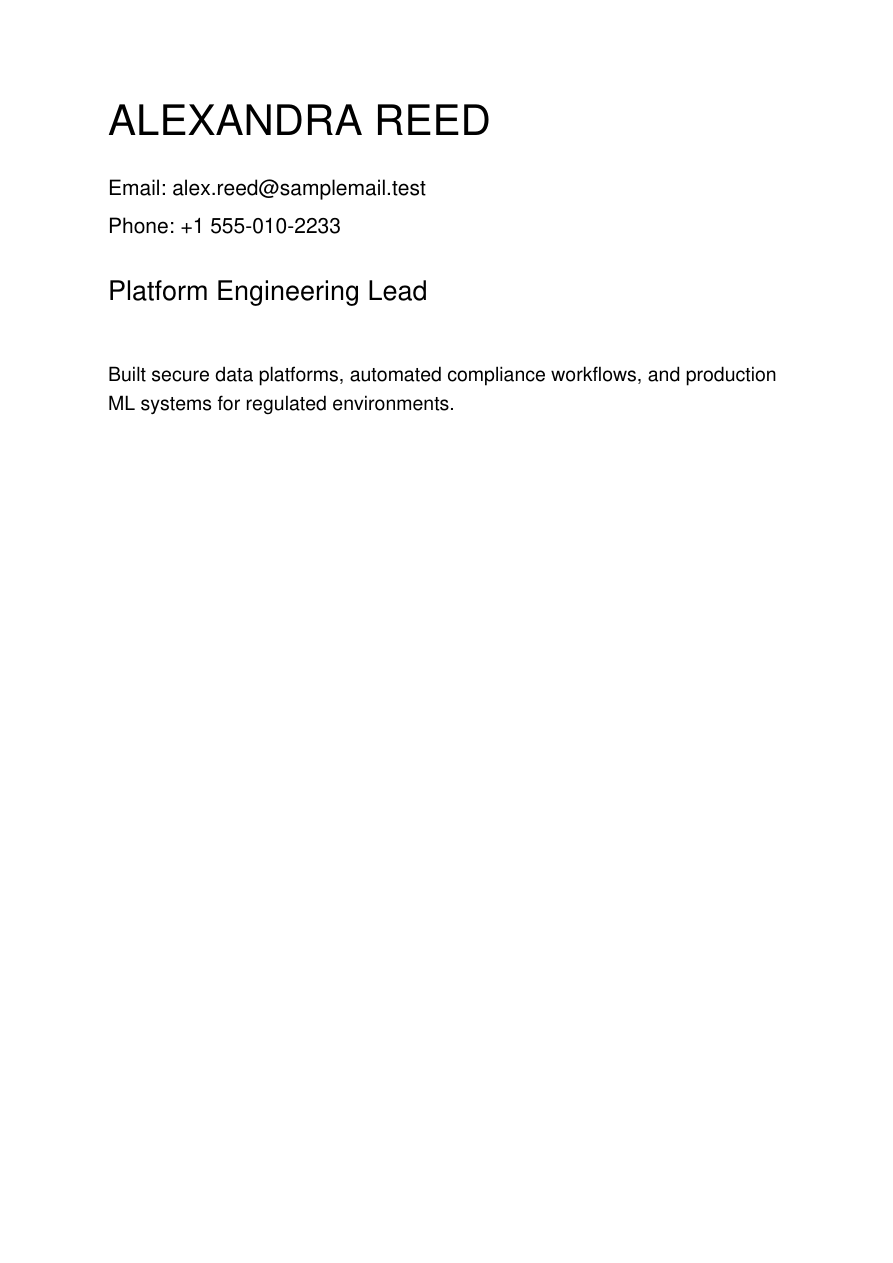
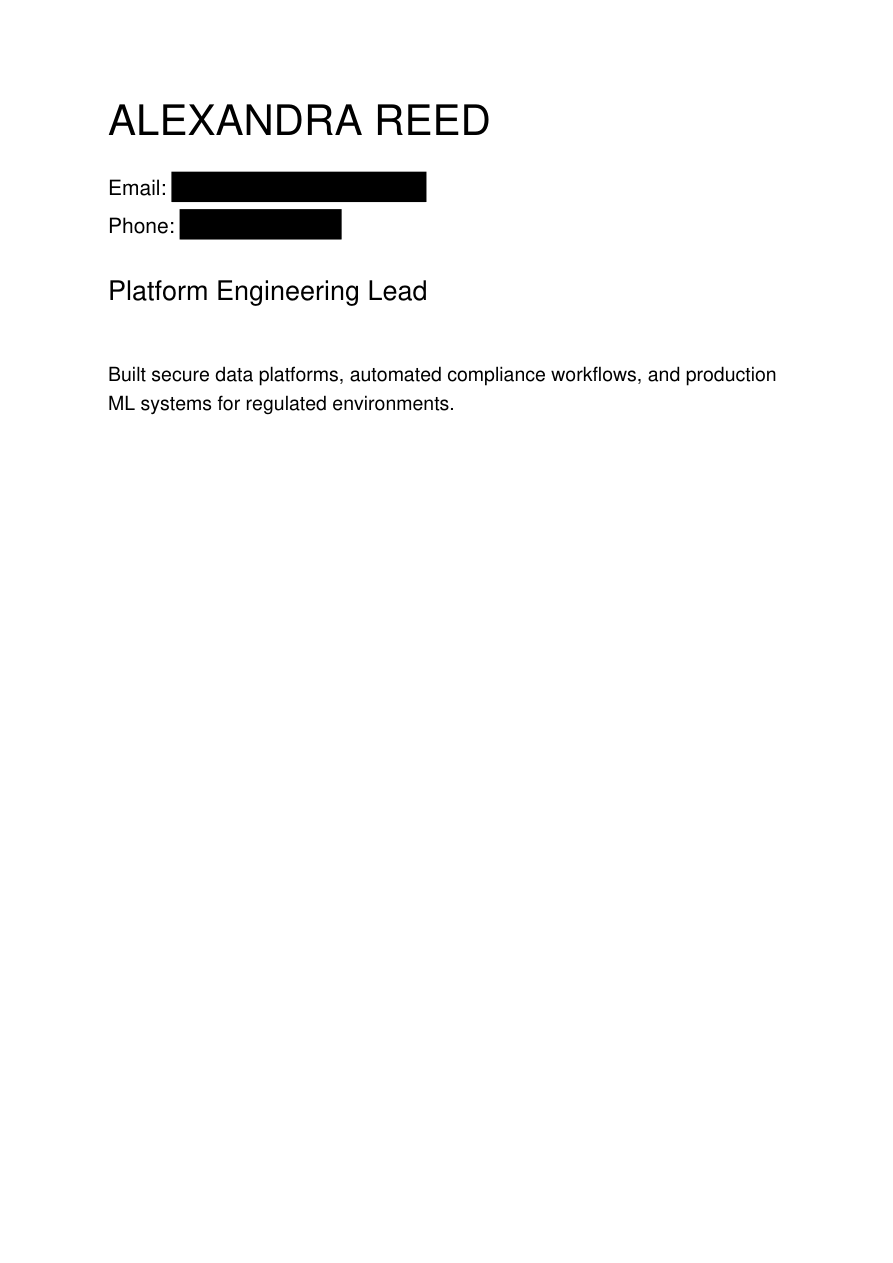
Many teams think blacking out text is enough, but simple overlays can leak source text. This page shows a safer redaction path.
Real redaction screenshots
Step-by-step workflow
- Identify exact words or phrases that must never be visible again.
- Use pattern entries to remove recurring text at once.
- Use region selection when text appears inside scans or images.
- Generate output and verify no target term is searchable.
- Store and distribute only the redacted version.
Practical examples
Financial reportingRemove account numbers and private wire references.
Legal exhibitsBlack out witness addresses and non-public names.
Sales documentsHide discount ladders before third-party review.
FAQ
What is the difference between blackout and redaction?
Blackout is visual. Redaction is structural removal plus visual mask.
Can this handle scanned docs?
Yes, manual region redaction works well for scanned content and image-heavy pages.
Should I keep the original?
Keep originals only in restricted storage. Share only the redacted version.
Ready to redact your file?
Use the live redaction interface to remove sensitive content and generate your final PDF.